


In my earlier post today I referenced the Pepperjam and Netshops partnership. I called both Melissa from Pepperjam and Sara from Netshops with a few questions.
The datafeeds for the Netshops stores are in the process of being converted over for Pepperjam users, also they are working on also partnering these feeds up with the Popshops program as well. This will enable the use of the Popshops Wordpress plugin which will be very beneficial to all.
My biggest suggestion would be to get signed up for Pepperjam now, so you are ready. Netshops is also in talks with adding several more stores as well. I will keep you updated on all this as it happens.
Showing posts with label popshops. Show all posts
Showing posts with label popshops. Show all posts
Wednesday, October 1, 2008
Sunday, August 24, 2008
How To Set Up A Popshops Store Page
This post will walk you through a simply store page set up with Popshops. This post assumes you are a Pro version user.
First log into your account and clich dashboard.
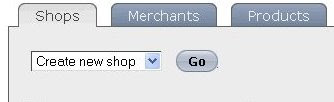
You should see the image below. Click Go and create new shop.
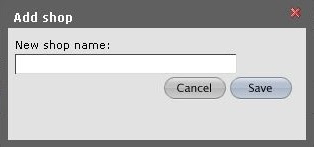
You should see the image below where you can name your new store and click Save.
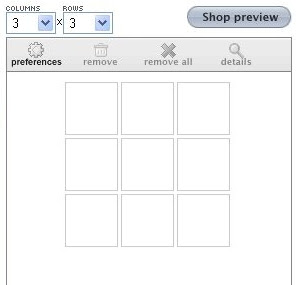
Next you want to create the layout of products. I suggest 3 columns by howerever many rows of products you wish to display.
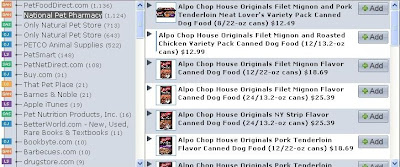
Next in the image below you can search for affiliates who list products matching what you are wanting to sell.
 Click a company in the results and from the center box, add the products you wish top show on your shop page. When done you can click the customize button up top and change the look and styles of the products. The Holiday showcase option is the best and most configurable. I prefer a width of 175 pixels, but you can play with that number depending on the template you are using.
 Click the Pop It In Tab and select PHP in the drop down menu. Pay attention to the Network ID Mangaer on the left. If it is red, you will need to enter in that affiliate programs id number.
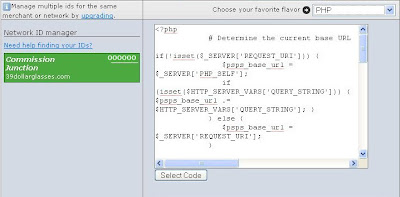 Copy and paste the PHP code into notepad for safe keeping on your hard drive, should you need it for quick reference. You have now successfully set up a product page.
First log into your account and clich dashboard.
You should see the image below. Click Go and create new shop.

You should see the image below where you can name your new store and click Save.

Next you want to create the layout of products. I suggest 3 columns by howerever many rows of products you wish to display.

Next in the image below you can search for affiliates who list products matching what you are wanting to sell.
 Click a company in the results and from the center box, add the products you wish top show on your shop page. When done you can click the customize button up top and change the look and styles of the products. The Holiday showcase option is the best and most configurable. I prefer a width of 175 pixels, but you can play with that number depending on the template you are using.
 Click the Pop It In Tab and select PHP in the drop down menu. Pay attention to the Network ID Mangaer on the left. If it is red, you will need to enter in that affiliate programs id number.
 Copy and paste the PHP code into notepad for safe keeping on your hard drive, should you need it for quick reference. You have now successfully set up a product page.
Popshops Wordpress Plugin
For the upcoming integration of Popshops pages inside of Wordpress BANS templates, I suggest going ahead and downloading and installing the Popshops Wordpress plugin.
We will next post we will configure products in the Popshops admin panel.
- Download and unzip the Popshops plugin archive to your harddrive.
- FTP the Popshops plugin folder to the wp-content/plugins directory on your Wordpress Installation.
- Log in to your admin panel and activate Popshops pluging under the 'Plugins' tab.
- Go to admin -> options -> PopShops
- If you don't have one already, create a PS account and add your network affiliate IDs (if you have them)
- Activate the Popshops API key.
We will next post we will configure products in the Popshops admin panel.
The "I Also Have A Store Attitude" Of Niche Site Building
As I have been talking about for a while, you need to be building niche sites that also happen to have stores. I call this the "I Also Have A Store Attitude" Of Niche Site Building. With the new buzz word being "Engaging The Surfer", a store will perform much better with the store as the back thought. What I mean by this is to lead the surfer to exactly where he wants to go. With the development of the BANS Wordpress Templates, this gives the ability to build a solid content laden niche site or hub, that also happens to have a niche store attached. And by niche store I am not just referring to BANS stores. I also mean adding other affiliate program store listings as well.
Below is an example of how I am migrating things:
Natural Dog Treats
As you can see on the test store, there are 3 pages of Popshops product pages that have been integrated into the theme. This is very easy to do and I suggest you tune in next week as I will be starting a series on how to integrate other affiliate program products into any of the Wordpress BANS Templates.
You can change the heading titles as well. I merely used "Pop Shops Store" as a title as an example.
To get ready for this series, I highly suggest you get signed up with the Pro Plan from Popshops and have your favorite niche store template loaded on a domain with Wordpress on the root and BANS in a folder named store.
Below is an example of how I am migrating things:
Natural Dog Treats
As you can see on the test store, there are 3 pages of Popshops product pages that have been integrated into the theme. This is very easy to do and I suggest you tune in next week as I will be starting a series on how to integrate other affiliate program products into any of the Wordpress BANS Templates.
You can change the heading titles as well. I merely used "Pop Shops Store" as a title as an example.
To get ready for this series, I highly suggest you get signed up with the Pro Plan from Popshops and have your favorite niche store template loaded on a domain with Wordpress on the root and BANS in a folder named store.
Subscribe to:
Posts (Atom)


